
How to Read a Bubble Lookup Results CSV
Interpret true, false, and blank outcomes, read the RCS system column, and match exported rows to the identifiers in your original file.
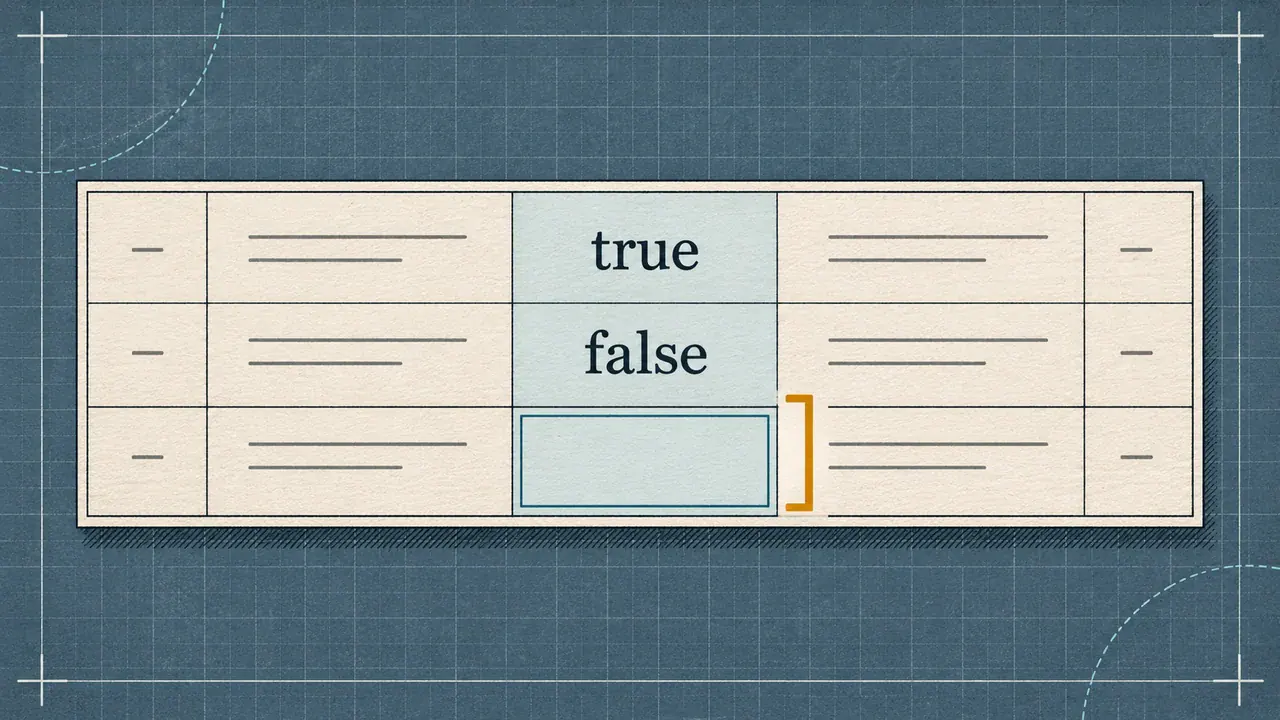
When a Bubble Lookup bulk task succeeds, download its CSV and check which product ran before interpreting the data. A successful task makes the file available. Each row’s registered value provides the result for that identifier, and some rows may still be inconclusive. The API documentation describes task status and how to retrieve the result.
Interpret the status for the selected product
The iMessage, iCloud phone, and iCloud email CSVs contain identifier and registered. RCS also has a system column. In the table below, a negative result describes what the check found at the time it ran.
| Product | registered=true |
registered=false |
|---|---|---|
| iMessage number | The number is registered for iMessage. | The number was found unregistered for iMessage. |
| iCloud phone or email | An Apple Account association was detected for the submitted identifier. | No Apple Account association was detected for that identifier. |
| RCS number | RCS is available for the number. | RCS was found unavailable for the number. |
For all four products, a blank registered field means that the result could not be determined. Preserve it separately from a completed negative. RCS can return system on a positive row when a value is available. Use registered to read RCS availability even when system is empty. RCS result fields and example rows.
Match rows by identifier
Import the CSV with identifier as text. The phone column can contain digits without the leading + used in the upload. Apply a consistent phone normalization to both files for matching, and preserve the original values. Use the source mapping you saved at upload to find every contact record for a returned identifier. If two records share the same normalized number, one result can be matched to both records. Microsoft’s Excel import guidance.
Track an input with no matching row separately from a returned row whose registered cell is blank. In the first case, check the input file, normalization, and task selection. In the second, keep the identifier available for review. Avoid converting either case to false in a spreadsheet or import script. Prepare an upload for reconciliation.
Keep enough context to use the result later
Save the task ID, product, original upload, and check date with each import. Store iMessage registration, Apple Account association, and RCS availability in separate fields so another product’s result cannot overwrite the value. These checks describe the submitted phone number or email address at the time of testing. Keep permissions to contact and actual delivery outcomes in records that track those events. Compare the three checks.